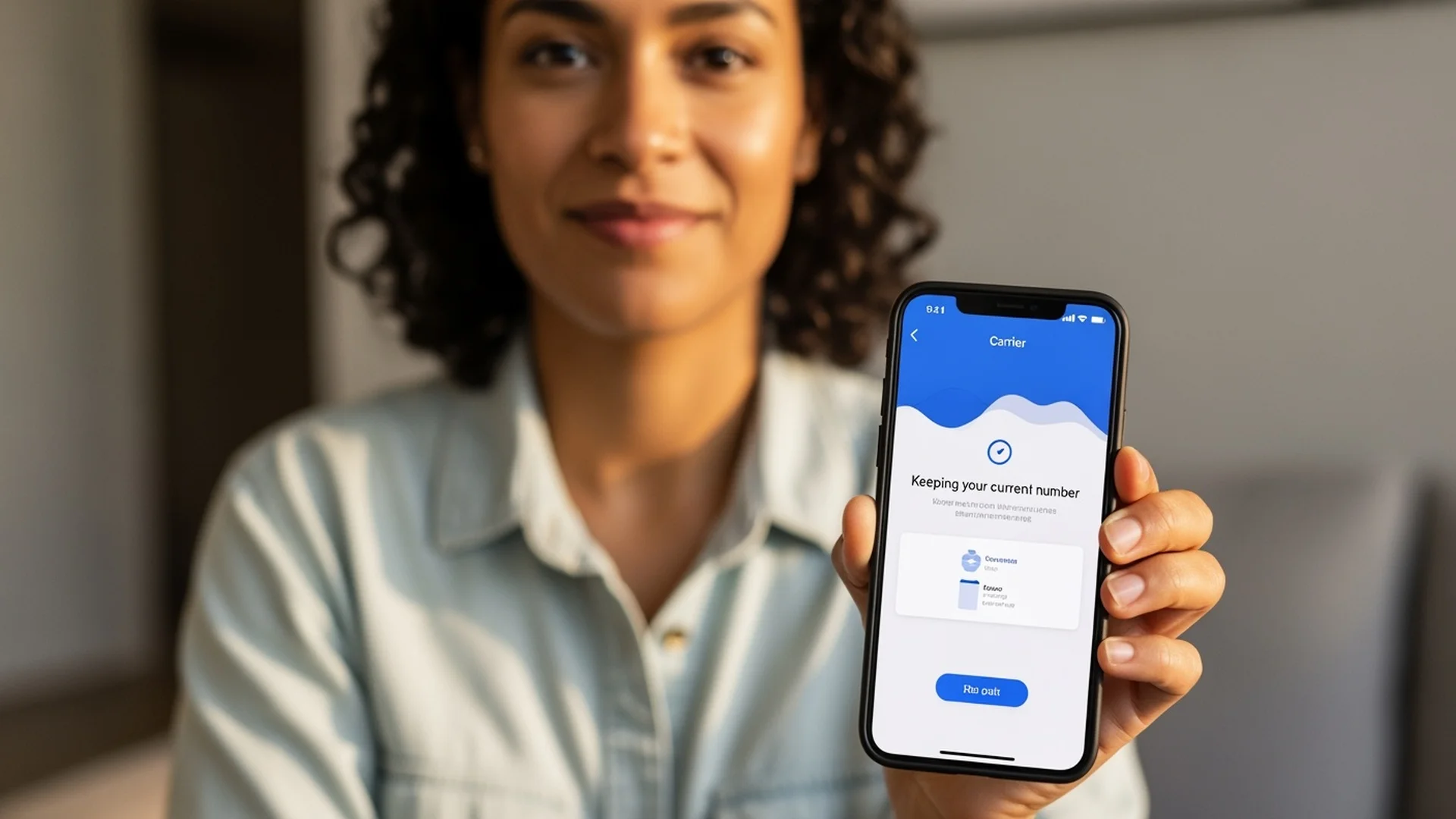
Everything you need to know about eSIM technology, which phones support it, how to activate one, and why it's better than a physical SIM card. A plain English guide for students.
If someone told you to set up a new phone plan, you’d probably picture a trip to a carrier store, standing in line, waiting while someone behind a counter slides a tiny plastic card into your phone, and then sitting through a 30 minute activation process. That’s how it used to work. It’s not how it works anymore.
An eSIM lets you activate a phone plan in minutes, right from wherever you are. No store visit. No tiny card that you’ll inevitably drop on the floor and lose under a couch. No waiting for anything in the mail. You scan a QR code, tap a few buttons, and you’re connected.
But a lot of people still don’t know what an eSIM actually is, whether their phone supports one, or how the setup process works. If that’s you, this guide will cover all of it. We’ll explain the technology in plain English, list every major phone that supports eSIM, walk through the setup step by step, and answer every question you probably have.
What Is an eSIM?
An eSIM (embedded SIM) is a SIM card built directly into your phone that can be programmed remotely, eliminating the need for a physical plastic SIM card. Let’s start with the basics.
A traditional SIM card is a small plastic chip that you insert into a slot on your phone. That chip tells your phone which carrier to connect to and stores your account information. If you’ve ever switched carriers or gotten a new phone, you’ve probably dealt with the process of popping out a tiny tray, swapping in a new SIM card, and hoping you didn’t bend the little ejector pin.
An eSIM is the same thing, just built directly into your phone. The “e” stands for “embedded.” Instead of a removable plastic card, the SIM is a tiny chip soldered permanently onto your phone’s circuit board. It does the exact same job as a physical SIM: it identifies your phone to the carrier, connects you to the network, and stores your account details.
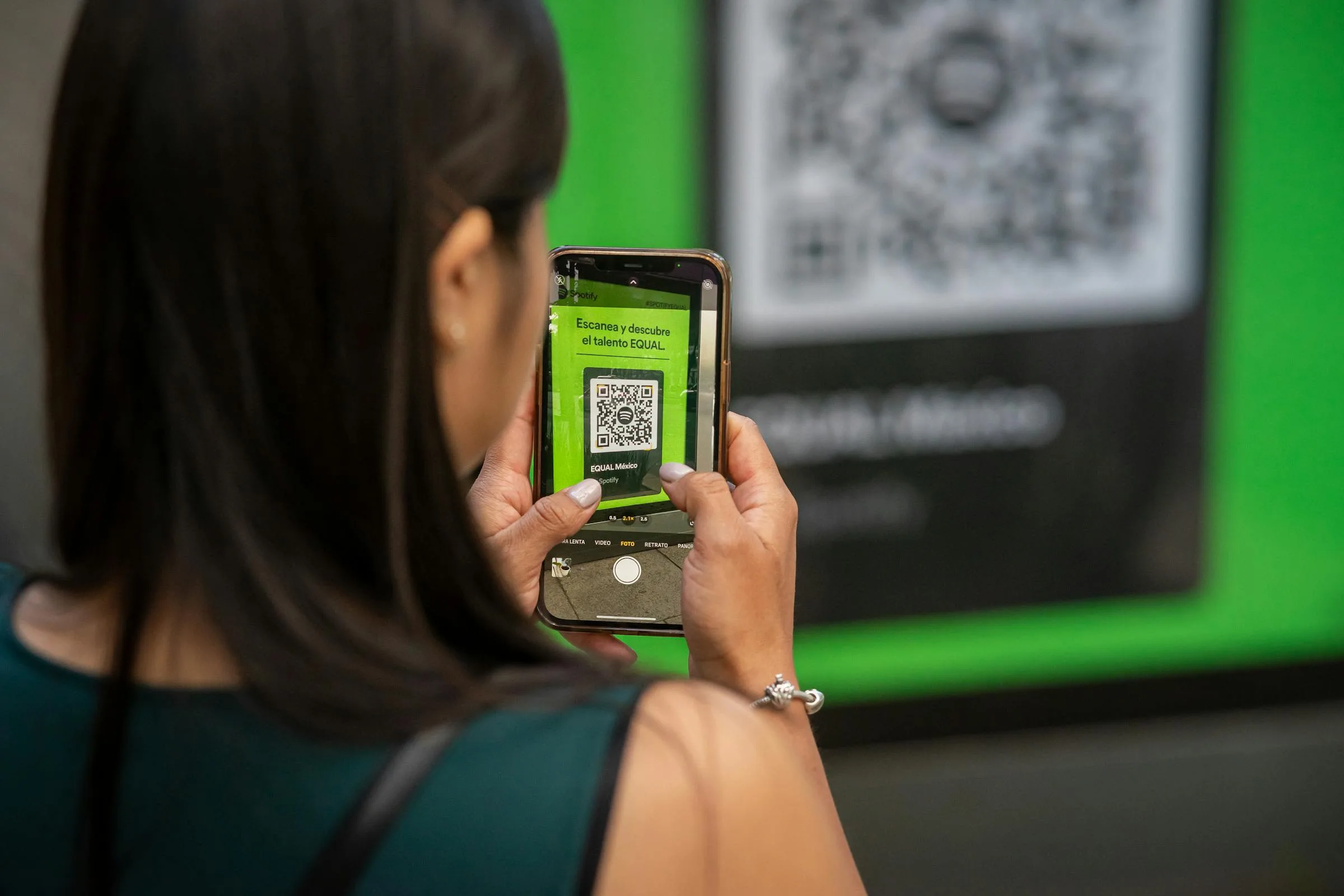
The key difference is that an eSIM can be programmed remotely. Instead of physically swapping a card, you download a carrier profile to the eSIM chip over the internet. This is usually done by scanning a QR code, which takes about 30 seconds. The eSIM stores the profile, connects you to your carrier’s network, and you’re done.
Think of it this way: a physical SIM card is like a house key cut into a specific shape. An eSIM is like a smart lock that can be reprogrammed to accept a new code whenever you want, without changing any hardware.
How eSIM and Physical SIM Compare
| Feature | Physical SIM | eSIM |
|---|---|---|
| What is it? | A small plastic chip you insert into your phone | A chip built into your phone, programmed over the internet |
| Activation | Visit a store or wait for a card in the mail | Scan a QR code from anywhere |
| Switching carriers | Swap in a new physical card | Download a new carrier profile |
| Setup time | 15 to 45 minutes (including travel and wait time) | Under 5 minutes |
| Can you lose it? | Yes, they’re tiny and easy to misplace | No, it’s built into your phone |
| Multiple numbers on one phone | Only if your phone has two SIM slots (rare) | Yes, most eSIM phones support dual SIM |
| Works internationally | Yes, but you need a local SIM card | Yes, and you can add international profiles without removing your home plan |
| Security | Can be physically removed or stolen (SIM swap attacks) | Cannot be physically removed, harder to clone |
Which Phones Support eSIM in 2026?
Most phones manufactured after 2019 support eSIM, including all iPhones from the XR onward, Samsung Galaxy S20 and newer, and Google Pixel 3 and newer. If you bought your phone in the last few years, there’s a very good chance it already has eSIM built in. Here’s a comprehensive list organized by manufacturer.
Apple (iPhone)
Apple was one of the first major manufacturers to adopt eSIM, and every iPhone since the XR supports it. Starting with the iPhone 14 lineup in the US market, Apple removed the physical SIM tray entirely, making eSIM the only option.
| iPhone Model | eSIM Support | Notes |
|---|---|---|
| iPhone XR | Yes | First iPhone with eSIM |
| iPhone XS / XS Max | Yes | |
| iPhone 11 / 11 Pro / 11 Pro Max | Yes | |
| iPhone SE (2nd generation, 2020) | Yes | |
| iPhone 12 / 12 mini / 12 Pro / 12 Pro Max | Yes | Supports dual eSIM |
| iPhone 13 / 13 mini / 13 Pro / 13 Pro Max | Yes | Supports dual eSIM |
| iPhone SE (3rd generation, 2022) | Yes | Supports dual eSIM |
| iPhone 14 / 14 Plus / 14 Pro / 14 Pro Max | Yes | US models: eSIM only (no physical SIM tray) |
| iPhone 15 / 15 Plus / 15 Pro / 15 Pro Max | Yes | US models: eSIM only |
| iPhone 16 / 16 Plus / 16 Pro / 16 Pro Max | Yes | US models: eSIM only |
If you have an iPhone XR or anything newer, you’re good to go.
Samsung Galaxy
Samsung introduced eSIM support with the Galaxy S20 series and has included it in most flagship phones since then. Note that some carrier branded versions of Samsung phones may have eSIM disabled, so it’s worth checking your specific model.
| Samsung Model | eSIM Support | Notes |
|---|---|---|
| Galaxy S20 / S20+ / S20 Ultra | Yes | |
| Galaxy S20 FE | Yes | Some carrier versions may not support eSIM |
| Galaxy S21 / S21+ / S21 Ultra | Yes | |
| Galaxy S21 FE | Yes | |
| Galaxy S22 / S22+ / S22 Ultra | Yes | |
| Galaxy S23 / S23+ / S23 Ultra | Yes | |
| Galaxy S23 FE | Yes | |
| Galaxy S24 / S24+ / S24 Ultra | Yes | |
| Galaxy S25 / S25+ / S25 Ultra | Yes | |
| Galaxy Z Flip 3 / Z Flip 4 / Z Flip 5 / Z Flip 6 | Yes | |
| Galaxy Z Fold 3 / Z Fold 4 / Z Fold 5 / Z Fold 6 | Yes | |
| Galaxy Note 20 / Note 20 Ultra | Yes | |
| Galaxy A54 5G | Yes | |
| Galaxy A55 5G | Yes |
Google Pixel
Google has supported eSIM since the Pixel 2, making the Pixel lineup one of the earliest Android adopters of the technology.
| Google Pixel Model | eSIM Support | Notes |
|---|---|---|
| Pixel 2 / 2 XL | Yes | First Android phone with eSIM (limited carrier support) |
| Pixel 3 / 3 XL | Yes | Broader eSIM carrier support |
| Pixel 3a / 3a XL | Yes | |
| Pixel 4 / 4 XL | Yes | |
| Pixel 4a / 4a 5G | Yes | |
| Pixel 5 / 5a | Yes | |
| Pixel 6 / 6 Pro / 6a | Yes | |
| Pixel 7 / 7 Pro / 7a | Yes | |
| Pixel 8 / 8 Pro / 8a | Yes | |
| Pixel 9 / 9 Pro / 9 Pro XL / 9 Pro Fold | Yes |
Motorola
| Motorola Model | eSIM Support |
|---|---|
| Razr (2020) | Yes |
| Razr 5G | Yes |
| Razr+ (2023) | Yes |
| Razr+ (2024) | Yes |
| Razr (2024) | Yes |
| Edge 40 Pro | Yes |
| Edge+ (2023) | Yes |
OnePlus
| OnePlus Model | eSIM Support |
|---|---|
| OnePlus 12 | Yes (select models) |
| OnePlus Open | Yes |
Other Devices
Several tablets and smartwatches also support eSIM:
| Device | eSIM Support |
|---|---|
| iPad Pro (3rd generation and later) | Yes |
| iPad Air (3rd generation and later) | Yes |
| iPad (7th generation and later) | Yes |
| iPad mini (5th generation and later) | Yes |
| Apple Watch Series 3 and later (cellular models) | Yes |
| Samsung Galaxy Watch 4 and later (LTE models) | Yes |
| Google Pixel Watch / Pixel Watch 2 / Pixel Watch 3 | Yes |
How Do You Check if Your Phone Supports eSIM?
The fastest way to check is to dial *#06# from your phone dialer; if you see an EID number listed, your phone supports eSIM. Here are the platform specific methods.
On iPhone
- Open Settings
- Tap General
- Tap About
- Scroll down and look for a field that says EID (this is your eSIM identifier)
- If you see an EID number, your phone supports eSIM
Alternatively, go to Settings, then Cellular (or Mobile Data in some regions). If you see an option that says Add eSIM or Add Cellular Plan, your phone supports it.
On Samsung Galaxy
- Open Settings
- Tap Connections
- Tap SIM manager (or SIM card manager)
- If you see an option labeled Add eSIM or Add mobile plan, your phone supports eSIM
Another method: Open Settings, tap About phone, then tap Status information. Look for an EID field. If it’s there, you have eSIM support.
On Google Pixel
- Open Settings
- Tap Network & internet
- Tap SIMs
- If you see an option to Download a SIM or Add eSIM, you’re set
You can also check by going to Settings, then About phone, and looking for an EID number in the device information.
The Universal Check
On any phone, you can dial *#06# from the phone dialer. This displays your device’s identity numbers. If you see an EID (embedded identity) number listed alongside the IMEI, your phone supports eSIM.

How Do You Set Up an eSIM? (Step by Step)
Setting up an eSIM takes under 5 minutes: sign up for a plan, receive a QR code, scan it with your phone’s camera, and your phone connects to the network. Here’s the detailed walkthrough for World Mobile through HexyMobile.
Before You Start
Make sure you have:
- A phone that supports eSIM (check the lists above or use the EID check)
- An unlocked phone. If you bought your phone directly from Apple, Google, Samsung, or any retailer, it’s unlocked. If you bought it through a carrier on a payment plan and you’ve finished paying it off, it should be unlocked. If you’re still making payments, you may need to pay it off first or contact your carrier to request an unlock.
- A Wi-Fi connection. You’ll need internet access to download the eSIM profile. (If you currently have cellular data on your existing plan, that works too.)
- A second device (optional but helpful). The setup involves scanning a QR code, so it’s easier if the QR code is displayed on a computer screen or a second phone/tablet while you scan it with your primary phone. If you don’t have a second device, you can also enter the activation details manually.
Step 1: Choose Your Plan and Sign Up
Visit hexymobile.com or go directly to the World Mobile signup page. Pick the plan that fits your needs:
| Plan | Data | Monthly Price | What’s Included |
|---|---|---|---|
| Starter | 2 GB | $15/mo | Unlimited calls and texts, VPN, hotspot |
| Standard | 8 GB | $25/mo | Unlimited calls and texts, VPN, hotspot |
| Unlimited | 25 GB | $40/mo | 15 GB hotspot, VPN, identity protection, international calls to 60 countries |
| Unlimited+ | 50 GB | $55/mo | 15 GB hotspot, $1M identity protection, SIM swap protection, international calls |
Every plan is contract free. You also get 50% off your first month, so the Starter plan is just $7.50 to try out.
If you’re a college student, the student plans page has specific recommendations based on typical campus usage patterns. For most students, the Standard plan at $25/mo is the sweet spot.
During signup, you’ll be asked whether you want to:
- Port your existing number (keep the same phone number you have now)
- Get a new number
If you’re porting, you’ll need your current account number and PIN from your existing carrier. You can usually find these in your current carrier’s app or by calling their customer service line. Our complete number porting guide explains exactly where to find this information for each major carrier.
Step 2: Receive Your QR Code
After completing the signup, you’ll receive a QR code. This is your eSIM activation code. It’s usually delivered via email, through the World Mobile app, or displayed directly on screen after purchase.
This QR code contains all the information your phone needs to connect to the World Mobile network. You don’t need to understand what’s in it; you just need to scan it.
Step 3: Install the eSIM Profile
Here’s where you actually set things up on your phone. The process is slightly different depending on your device.
On iPhone:
- Open Settings
- Tap Cellular (or Mobile Data)
- Tap Add eSIM or Add Cellular Plan
- Choose Use QR Code
- Point your phone’s camera at the QR code
- Your phone will detect the eSIM profile. Tap Continue
- Wait a few seconds for the profile to download
- When prompted, tap Done
On Samsung Galaxy:
- Open Settings
- Tap Connections
- Tap SIM manager
- Tap Add eSIM
- Tap Scan QR code from service provider
- Point your camera at the QR code
- The profile will download. Follow the on screen prompts to finish
On Google Pixel:
- Open Settings
- Tap Network & internet
- Tap SIMs
- Tap Download a SIM instead (or Add eSIM)
- Tap Next, then choose Scan QR code
- Point your camera at the QR code
- Confirm the installation when prompted
The download typically takes 30 seconds to 2 minutes depending on your connection speed.
Step 4: Label Your eSIM (Optional but Helpful)
After installation, your phone may ask you to label the new line. You can call it anything you want: “World Mobile,” “HexyMobile,” “Main Line,” or whatever makes sense to you. This is especially useful if you’re running two lines on the same phone (more on that below).
Step 5: Set Your Default Line
If your phone has both a physical SIM and an eSIM active (or two eSIM profiles), it will ask you to choose which line to use as your default for calls, texts, and data. If World Mobile is your only plan, just set it as the default for everything.
Step 6: You’re Connected
That’s it. Your phone will connect to the World Mobile network. You should see signal bars appear within a minute or two. Try making a call, sending a text, and loading a webpage to confirm everything is working.
If you ported your number from a previous carrier, the transfer usually completes within a few minutes. In some cases it can take up to a few hours, but during that time your old service remains active so you won’t miss any calls or messages.
The entire process, from signing up to making your first call, takes about five minutes.

Dual SIM: Keep Two Numbers on One Phone
One of the most useful features of eSIM is the ability to run two phone numbers on a single device. This is called dual SIM, and it’s perfect for several situations.
How Dual SIM Works
Most modern phones can run one physical SIM and one eSIM simultaneously. Some newer phones (like the iPhone 13 and later) can even run two eSIM profiles at the same time, with no physical SIM involved at all.
When dual SIM is active, your phone maintains two separate lines. You can choose which line to use for outgoing calls and texts, and incoming calls and texts on both numbers will ring on the same device. For data, you pick one line as your primary data connection.
Who Benefits from Dual SIM?
Students Studying Abroad
If you’re a US college student doing a semester abroad, dual SIM is incredibly valuable. You can keep your US number active on one line (so family and friends can still reach you) while adding a local SIM for your host country on the other line (for cheap local calls and data). No need to carry two phones or choose between staying reachable and having affordable local service. Check out the student plans page for recommendations on which World Mobile plan to pair with a study abroad setup.
People With a Work and Personal Number
If your employer gives you a work number but you don’t want to carry two phones, dual SIM lets you keep both lines on one device. When you’re off the clock, you can silence the work line without affecting your personal number.
Travelers
Even if you’re just traveling domestically, dual SIM is handy. You can add a local carrier’s prepaid plan for an area with better coverage while keeping your main number active.
Anyone Trying Out a New Carrier
Dual SIM is a zero risk way to try a new phone plan without cancelling your old one. Add World Mobile as an eSIM, test it for a few days, and then decide whether to port your number over permanently. You can use both services simultaneously during the trial.
Setting Up Dual SIM
When you install an eSIM profile on a phone that already has a physical SIM (or another eSIM), your phone will automatically recognize both lines and ask you to configure them. You’ll choose:
- Which line handles outgoing calls (you can change this per call)
- Which line handles SMS/texts
- Which line provides cellular data
- Labels for each line (e.g., “Personal” and “World Mobile”)
You can adjust these settings at any time in your phone’s cellular or SIM manager settings.
Common Concerns About eSIM
A lot of people are hesitant about eSIM simply because it’s unfamiliar. Let’s address the most common worries.
”Is eSIM secure?”
eSIM is actually more secure than a physical SIM card in several important ways.
A physical SIM can be removed from your phone by anyone who gets their hands on it. This is the basis of SIM swap fraud, where a criminal convinces your carrier to transfer your number to a new SIM card, then uses that to intercept your two factor authentication codes and access your accounts.
An eSIM can’t be physically removed. It’s soldered onto the phone’s circuit board. Someone can’t just pop open your SIM tray and steal your identity. The eSIM profile is also encrypted and protected by your phone’s security (Face ID, fingerprint, PIN). World Mobile’s higher tier plans (Unlimited and Unlimited+) include additional SIM swap protection, which adds another layer of defense against account takeover attempts. For a closer look at the privacy and security features included across all plans, see why thousands are switching to World Mobile.
”Can I switch back to a physical SIM?”
Yes. If your phone has a physical SIM tray (most phones do, except the US iPhone 14 and later), you can always go back to using a physical SIM. Removing or deactivating an eSIM profile doesn’t affect your phone in any way. The eSIM chip remains in the phone whether you’re using it or not, ready to be programmed again whenever you want.
If you have a phone without a physical SIM tray (like the iPhone 15 in the US), you can still switch between different eSIM profiles from different carriers. You’re not locked to one carrier just because you’re using eSIM.
”What if I change phones?”
When you get a new phone, you’ll need to transfer your eSIM profile. The process depends on your carrier and phone manufacturer, but it generally works one of two ways:
-
eSIM Quick Transfer (iPhone to iPhone): If you’re moving from one iPhone to another, iOS offers a built in eSIM transfer feature during the device setup process. It moves your eSIM profile to the new phone automatically.
-
New QR code from your carrier: Contact World Mobile support and they’ll issue you a new QR code. Scan it on your new phone, and you’re connected. Your number, plan, and account stay the same.
In either case, the process takes a few minutes at most. It’s no more complicated than transferring a physical SIM, and arguably simpler since you don’t need to find a SIM eject tool.
”What happens if my phone breaks?”
If your phone is damaged or stolen, your eSIM profile can be deactivated remotely by your carrier to prevent unauthorized use. When you get a replacement phone, World Mobile will issue a new eSIM activation code. This is actually faster than the physical SIM process, where you’d need to either retrieve the SIM from the broken phone (not always possible) or wait for a replacement card to arrive.
”Will I lose my phone number?”
No. Your phone number is tied to your carrier account, not to the SIM itself (whether physical or eSIM). When you set up a new eSIM on a new device, your number comes with it. When you port your number to World Mobile from another carrier, it transfers regardless of whether you’re using physical SIM or eSIM.
”Is eSIM available on prepaid plans?”
Yes. All World Mobile plans support eSIM activation, including the $15/mo Starter plan. There’s no premium or extra charge for using eSIM instead of a physical SIM. It’s the same plan, same price, same features.
Is eSIM Better Than a Physical SIM Card?
Yes. eSIM is faster to activate, more secure against SIM swap attacks, eliminates fragile SIM trays, and enables dual SIM functionality on most modern phones. Here is why it is a significant upgrade.
Instant Activation
With a physical SIM, you either visit a store, wait in line, and have someone set it up for you, or you order one online and wait days for it to arrive in the mail. With eSIM, you scan a code and you’re connected. The entire activation happens in minutes. This is especially valuable if you’re a student who just moved to a new city and needs phone service immediately. Check the student plans page to find a plan and get started right now.
No More SIM Tray Hassles
SIM trays are one of the most fragile parts of a phone. The ejector pin is easy to lose, the tray can bend if you don’t align it properly, and the contacts can corrode if moisture gets in. eSIM eliminates all of these failure points because there’s no moving part involved.
Better for the Environment
Physical SIM cards are made of plastic and use packaging, shipping materials, and fuel for delivery. eSIM eliminates all of that. It’s a small thing individually, but across hundreds of millions of phone activations per year, the reduction in plastic waste and shipping emissions adds up.
Better Water Resistance
Without a SIM tray cutout, phone manufacturers can improve the water resistance of their devices. The SIM tray slot is one of the openings where water can enter a phone. Removing it (as Apple has done with the iPhone 14 and later in the US) allows for a tighter seal.
Easier International Travel
Traveling internationally with a physical SIM used to mean either paying outrageous roaming fees or buying a local SIM card at the airport and losing access to your home number. With eSIM, you can download a local carrier’s eSIM profile for your destination country before you even board the plane, while keeping your home number active on the other line. When you get back, just deactivate the travel eSIM. No swapping cards, no losing your home SIM, no drama.
More Room Inside Your Phone
The physical SIM slot takes up real estate inside your phone. By removing it, manufacturers can use that space for a bigger battery, a larger camera sensor, or other improvements. This is one of the reasons Apple went eSIM only on newer US iPhones.
Troubleshooting Common eSIM Issues
Most eSIM setups go smoothly, but here are solutions for the few issues that occasionally come up.
”My phone says it can’t add an eSIM”
Possible causes and fixes:
- Your phone is carrier locked. If you bought your phone through a carrier and haven’t paid it off, the carrier may have locked the eSIM feature. Contact your current carrier and ask them to unlock your device.
- You’ve reached the eSIM profile limit. iPhones can store multiple eSIM profiles but can only have a certain number active. Try deleting an old, unused eSIM profile from Settings, then Cellular, then selecting the old profile and tapping “Delete eSIM.”
- Software update needed. Make sure your phone is running the latest operating system. Older software versions may have eSIM bugs that have since been fixed.
”The QR code won’t scan”
Try these fixes:
- Clean your camera lens. A smudged lens can prevent the QR code from being read properly.
- Improve lighting. Make sure the QR code is well lit and your screen brightness (if the QR code is displayed on another device) is turned up.
- Try manual entry. If scanning isn’t working, most phones let you enter the eSIM activation details manually. Look for an option like “Enter Details Manually” or “Enter Information Manually” in the eSIM setup screen. You’ll need the SM-DP+ address and activation code, which should be provided alongside the QR code.
- Use a different device to display the QR code. If you’re scanning from a computer screen and it’s not working, try displaying the QR code on another phone or tablet.
”My eSIM installed but I have no signal”
Steps to resolve:
- Toggle airplane mode. Turn airplane mode on, wait 10 seconds, then turn it off. This forces your phone to reconnect to the network.
- Restart your phone. A simple restart resolves most connection issues after a new eSIM installation.
- Check that the eSIM line is active. Go to Settings, then Cellular (iPhone) or SIM manager (Samsung/Pixel), and make sure your World Mobile eSIM is toggled on.
- Check your data line settings. If you have dual SIM active, make sure the World Mobile line is selected for cellular data.
- Reset network settings. As a last resort, you can reset your network settings (Settings, General, Transfer or Reset, Reset Network Settings on iPhone). This clears saved Wi-Fi passwords and Bluetooth pairings, so only do this if other steps haven’t worked.
- Contact support. If none of the above works, reach out to HexyMobile support through hexynodes.com/contact. The activation may need to be reprocessed on the network side.
”I can make calls but mobile data isn’t working”
This is almost always a settings issue:
- Go to Settings, then Cellular (iPhone) or Connections (Samsung) or Network & internet (Pixel)
- Make sure Cellular Data (or Mobile Data) is turned on
- If you’re using dual SIM, make sure the correct line is selected for data
- Check that Data Roaming is turned on if you’re outside your home area
”I ported my number but calls still go to my old carrier”
Number porting can occasionally take a few hours to fully complete. During this window, calls may still route to your old service. Here’s what to do:
- Wait up to 4 hours. Most ports complete within minutes, but some take longer, especially if you’re porting from a carrier that processes transfers in batches.
- Restart your phone. After waiting, restart your phone to force it to refresh its network connection.
- Verify the port status. Check your World Mobile account dashboard or contact support to confirm the port is processing.
- Don’t cancel your old service. Your old service will be automatically cancelled once the port completes. Cancelling it manually beforehand can cause the port to fail.
eSIM and World Mobile: A Perfect Match
World Mobile was built with eSIM as a primary activation method, not as an afterthought. This means the signup and activation process is designed around digital delivery from the ground up. There’s no legacy physical SIM infrastructure slowing things down.
Here’s what that means for you in practical terms:
- You can sign up and be connected in under 5 minutes. Not “up to 24 hours” or “within 3 business days.” Actually, genuinely, in under five minutes.
- There’s no store you need to visit. World Mobile operates digitally. You sign up online, get your QR code instantly, and activate from your couch, your dorm room, your lecture hall, wherever.
- Switching is reversible and risk free. Since there are no contracts, you can try World Mobile for a month. If it’s not for you (it will be), cancel and you’ve lost nothing. Your old carrier will happily take you back.
- 50% off your first month on every plan makes the trial even lower stakes.
For students in particular, this approach makes a lot of sense. You’re already doing everything on your phone. Managing your phone plan should be just as easy. No more waiting in line at a carrier store between classes. No more dealing with physical SIM cards when you’re trying to get set up in a new apartment. The student plans page has plan recommendations based on actual college usage patterns, so you can pick the right plan in about 60 seconds.
If you want to see how World Mobile’s plans compare to what you’re currently paying, take a look at our breakdown of affordable phone plans in Bellingham or the WWU student phone plan guide. And if you sign up and love it (you will), the Refer & Earn program pays you up to $45 for every friend you bring along.
The History of SIM Cards (Brief Version)
For the curious: SIM technology has been around since 1991, when the first SIM card was developed for the European GSM standard. Those original SIMs were the size of a credit card. Over the decades, the form factor shrank through several generations:
| SIM Generation | Dimensions | Introduced |
|---|---|---|
| Full Size SIM | 85.6 mm x 53.98 mm (credit card size) | 1991 |
| Mini SIM | 25 mm x 15 mm | 1996 |
| Micro SIM | 15 mm x 12 mm | 2003 (popularized by iPhone 4 in 2010) |
| Nano SIM | 12.3 mm x 8.8 mm | 2012 (popularized by iPhone 5) |
| eSIM | Built into device (no removable card) | 2016 (GSMA standard); consumer devices from 2017 onward |
Each generation kept the same basic technology (a small processor that authenticates you with the carrier) while reducing the physical footprint. eSIM is the logical endpoint of that trend: the SIM still exists, but the plastic card around it doesn’t.
The GSMA (the global body representing mobile operators) published the eSIM standard in 2016. Apple’s iPhone XS and XR in 2018 were the breakout consumer devices that brought eSIM to mainstream awareness. Since then, adoption has accelerated rapidly, and most major manufacturers and carriers now support it.
eSIM and Privacy
One question that comes up occasionally: does eSIM change anything about your privacy?
The short answer is no, not in a negative way. An eSIM stores the same type of information as a physical SIM: your subscriber identity, your phone number, and your carrier authentication keys. It doesn’t collect any additional data, track your location differently, or grant anyone new access to your information.
In fact, eSIM can be better for privacy in one specific way. Because the eSIM is encrypted and tied to your device’s secure hardware, it’s harder for someone to clone your SIM card or perform a SIM swap attack without your knowledge. Physical SIM cards, by contrast, can be removed and placed in another device by anyone with access to your phone and a SIM eject tool.
World Mobile plans also include a built in VPN at no extra charge, which encrypts your internet traffic regardless of whether you’re on Wi-Fi or cellular data. This is a privacy feature that most carriers either charge $5 to $12 extra per month for, or don’t offer at all.
Frequently Asked Questions
Can I use eSIM if my phone still has a physical SIM slot?
Yes. Having a physical SIM slot doesn’t prevent you from using eSIM. Most phones with eSIM support also have a physical SIM slot, and you can use either one or both simultaneously. The only phones without a physical SIM tray are the US versions of the iPhone 14 and later, which are eSIM only.
How many eSIM profiles can my phone store?
It depends on the device. iPhones (iPhone 13 and later) can store eight or more eSIM profiles, but only two can be active at the same time. Samsung Galaxy phones generally support one to two eSIM profiles. Google Pixel phones support one active eSIM profile alongside a physical SIM. Even if your phone limits active eSIM profiles, you can switch between stored profiles without needing to rescan the QR code.
Does eSIM use more battery than a physical SIM?
No. The eSIM chip consumes the same amount of power as a physical SIM card. There’s no measurable difference in battery life between using an eSIM and a physical SIM. If you’re running dual SIM (two lines active at once), your phone may use slightly more battery because it’s maintaining two network connections, but this is true regardless of whether the second line is physical SIM or eSIM.
Can I transfer my eSIM to a friend's phone?
No. An eSIM profile is tied to a specific device for security reasons. You can’t simply move it to another phone the way you would with a physical SIM card. If you want to move your service to a different device, you’ll need to contact your carrier to get a new activation code for the new phone. This is actually a security benefit since it means nobody can steal your eSIM profile without going through the carrier.
What if my carrier doesn't support eSIM?
If your current carrier doesn’t support eSIM, that’s actually a good reason to switch. Most modern carriers, including World Mobile, fully support eSIM. If you switch to World Mobile, eSIM activation is the default method and is included at no extra cost on every plan. Physical SIM cards are also available if you prefer.
Is there an extra charge for using eSIM instead of a physical SIM?
Not with World Mobile. The plan price is the same whether you activate via eSIM or physical SIM. There’s no activation fee, no eSIM premium, and no setup charge. Some other carriers have historically charged a small fee for eSIM activation, but this practice is becoming rare.
Can I use eSIM on a tablet or smartwatch?
Yes, if the device supports it. Many iPads, Samsung Galaxy tablets, Apple Watches, and Samsung Galaxy Watches support eSIM. This lets you add a cellular plan directly to your tablet or watch so it can make calls, send texts, and use data independently of your phone. Check the compatibility table earlier in this guide for specific models.
What happens to my eSIM if I factory reset my phone?
A factory reset will erase your eSIM profiles on most phones. You’ll need to reinstall the eSIM by scanning a new QR code from your carrier. Before doing a factory reset, it’s a good idea to contact World Mobile to let them know you’ll need a new activation code, or check if your phone supports eSIM transfer before the reset.
Can I have one physical SIM and one eSIM from different carriers?
Absolutely. This is one of the most popular uses of dual SIM. You can have, for example, your existing carrier on the physical SIM and World Mobile on the eSIM. This is a great way to test World Mobile’s service before fully committing. You can use both lines simultaneously and switch your default as you see fit.
Do I need an internet connection to set up eSIM?
Yes. You need either a Wi-Fi connection or an active cellular data connection (from an existing SIM) to download the eSIM profile. The download is small (a few kilobytes) so even a slow connection will work fine. After the initial download, your eSIM operates independently and doesn’t need Wi-Fi.
Is eSIM technology reliable? What if the chip fails?
eSIM chips are extremely reliable. They’re built to last the lifetime of the device, with no moving parts and no physical wear from insertion and removal (unlike physical SIM cards and their trays). In the rare event of a hardware failure, the eSIM chip would be replaced as part of a device repair, since it’s integrated into the phone’s circuit board.
My phone is carrier locked. Can I still use eSIM?
If your phone is locked to a specific carrier, you generally cannot use eSIM with a different carrier until the phone is unlocked. Contact your current carrier and request a device unlock. In the US, carriers are required to unlock phones once the device is fully paid off and the account is in good standing. Once unlocked, you can use eSIM with any compatible carrier, including World Mobile.
The Bottom Line
eSIM isn’t some complicated new technology that requires technical expertise. It’s a simpler, faster, and more secure version of something your phone has always done. Instead of a removable plastic card, the SIM is built into your phone and programmable over the internet.
The setup takes under five minutes. Your phone almost certainly supports it. And with World Mobile, you can go from “I want a new phone plan” to “I’m making calls” without leaving your chair.
If you’ve been putting off switching carriers because you thought it would be complicated, eSIM removes that excuse entirely. Pick a plan, scan a code, and you’re done. It really is that simple.
Ready to get started? Visit hexymobile.com or sign up directly with 50% off your first month.
Ready to switch? Plans start at $15/mo.
Sign Up at HexyMobileStay in the Loop
Phone plan tips, coverage updates, and deals for the PNW. No spam.